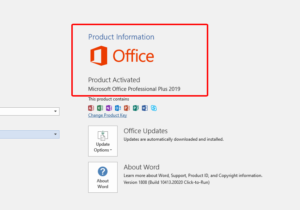
✅ Step-by-Step Activation Guide For MS Office 2024/2021/2019/2016/2013-
Step 1: Download and Install Office
-
Download the Office setup file for your purchased version using the link provided in your order-delivery email.
-
Run the setup file and follow the on-screen instructions to complete the installation.
Note- If you already have a genuine Microsoft Office setup of the correct version you purchased, you do not need to download or reinstall it.
Step 2: Open an Office Application
-
After installation, open any Microsoft Office application such as Word or Excel.
(Make sure to open the application itself, In case of document clcik on Click on the File tab at the top-left)
Step 3: Enter Your Product Key
-
When you open the application for the first time, you should be prompted to enter your Product Key.
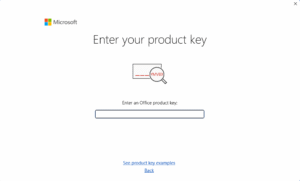
-
If you are not prompted automatically:
-
Go to Account located in the lower-left corner.
-
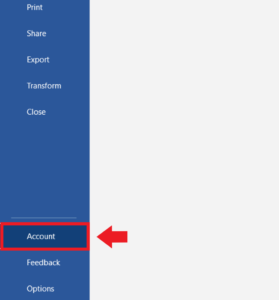
- Under Product Information, select Change Product Key / Switch License.
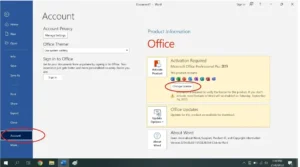
-
Enter your product key and click Activate Office.
Step 4: Activation Wizard
-
The Activation Wizard should appear automatically.
-
If it does not appear, close the application and reopen it.
- If still not appear then Go to Account Section again and then Click on ‘Activate Product’ Box in the Product Information area.
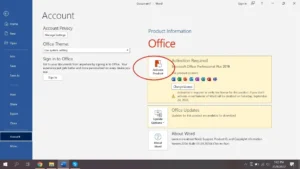
Below is the standard message you will receive to prompt phone activation.
Activation Wizard:
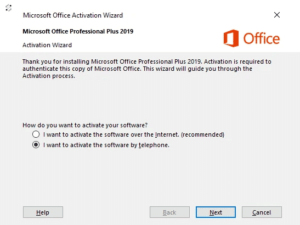
To start the simple process of activation Select the Second Telephonic option
Now click next to NEXT.
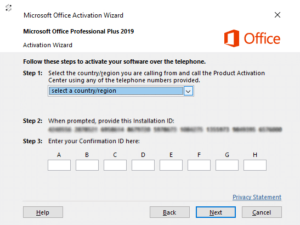
You will see the telephone activation section.
First select your country, this will enable Microsoft to generate you a phone number to call.
An example of this windows is below.
📞 Microsoft Toll-Free Number (India): 0008000404453 (Dial the complete Number, Don’t delete any zeros. Dial from Jio, Airtel, and Vi Numbers only.)
OR Visit the New Easy and Fast Microsoft Product Activation Portal-
🌐 Visit the official portal: https://aka.ms/aoh
🔁 Two Options:
✅ Option 1: Activate via Phone (Self)
-
Call the Microsoft number to get the portal link or directly visit the portal and follow instructions to get a Confirmation ID
-
Enter the Confirmation ID into blocks A–H
-
Click Next to Activate Office
🤝 Option 2: Let Us Help You
-
If you can’t call or Unable to use the Portal, simply:
-
Take a clear photo or screenshot of the Installation ID
-
Send it to us via WhatsApp
👉 Contact Us on WhatsApp -
Mention your Order ID
-
Our team will generate and send you the Confirmation ID within a few minutes
-
Final Step:
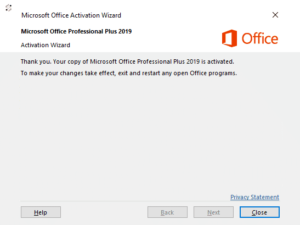
After entering the confirmation in all blocks recheck it and then click on Next and your office will get successfully activated.
Please see the image below.
✅ To Verify Activation:
-
Open any Ms Office Application Like word or Exel and the click on Account in the left side below corner
-
You should see:
“Product Activated”